
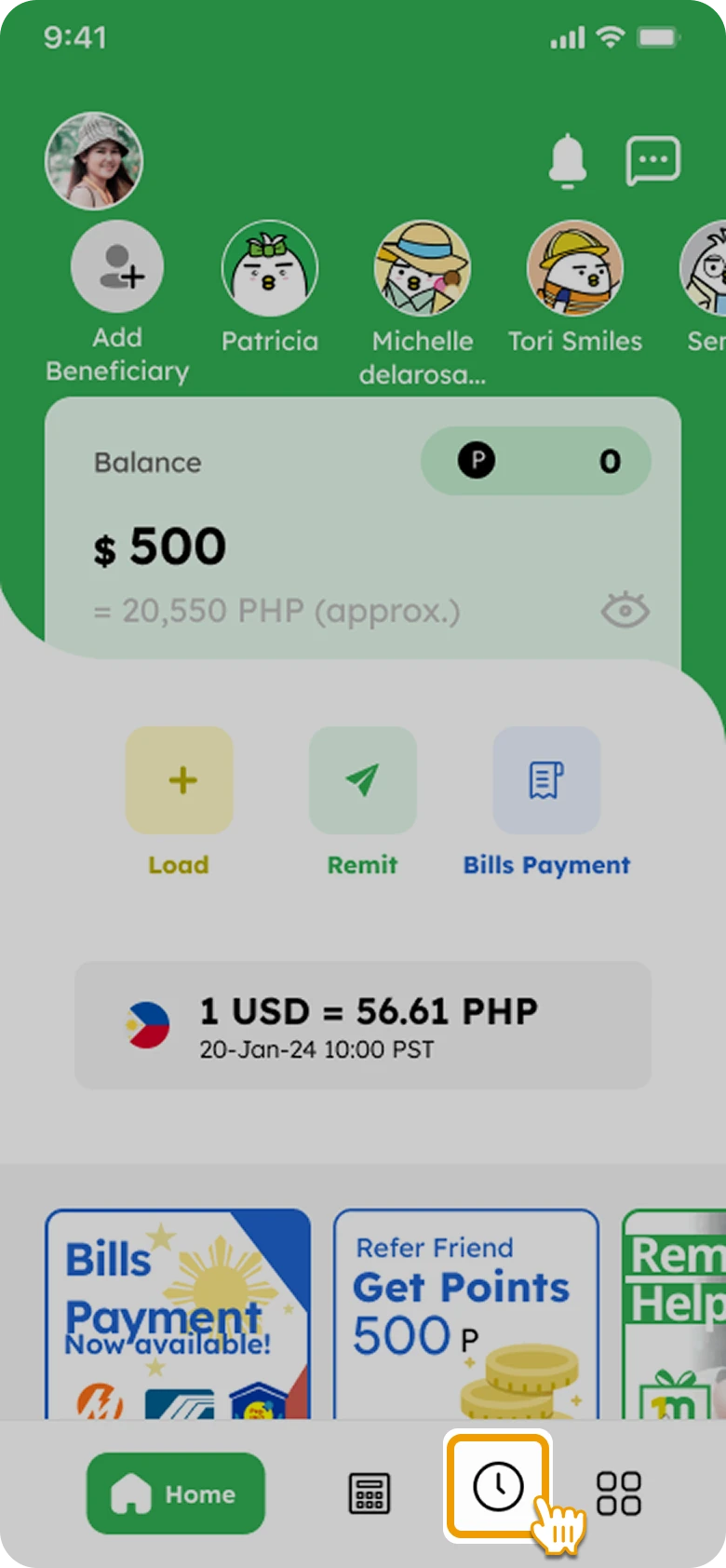
1. Tap on “History” icon at the bottom of the screen
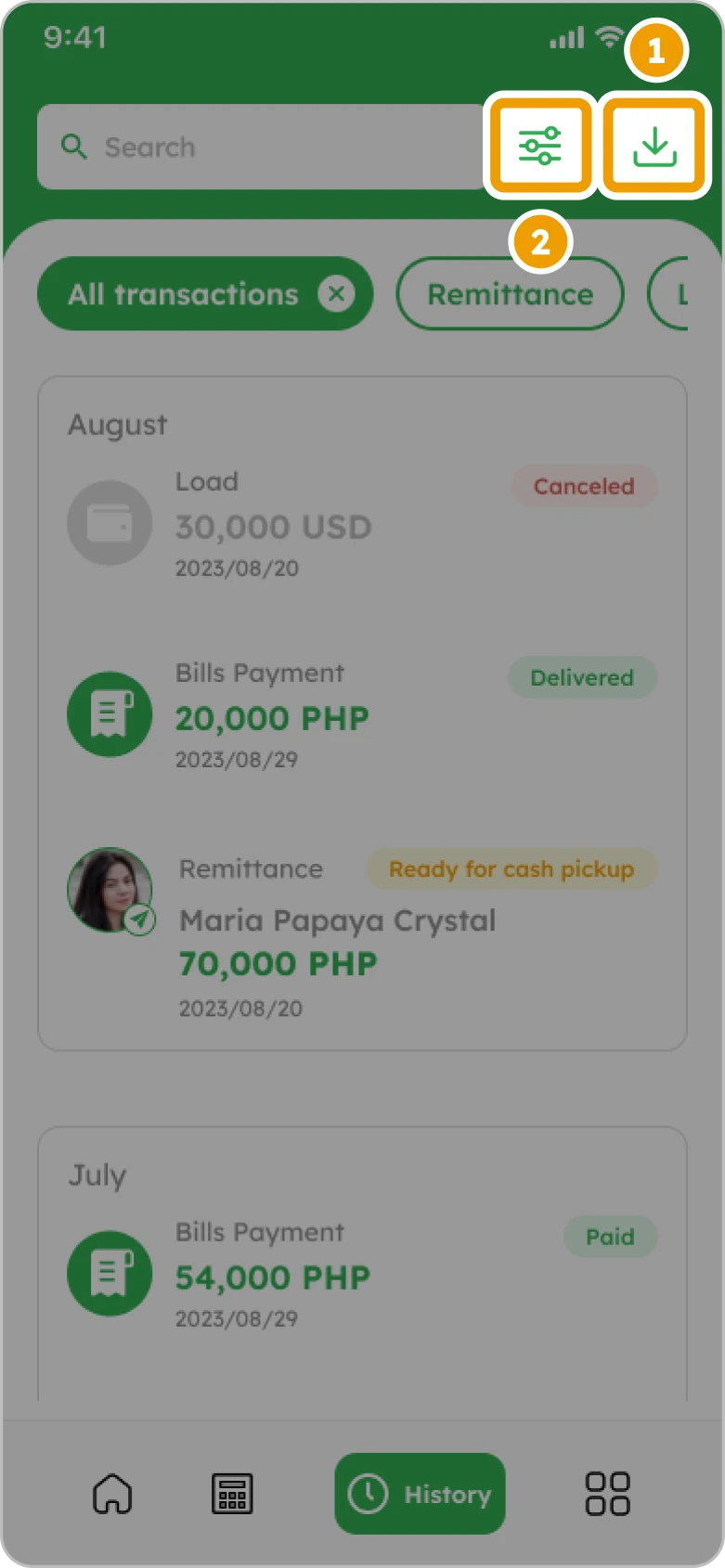
2. ①To download all transactions, ②To filter transaction(s)
3. Tap “Download” and then check files on your phone to find it
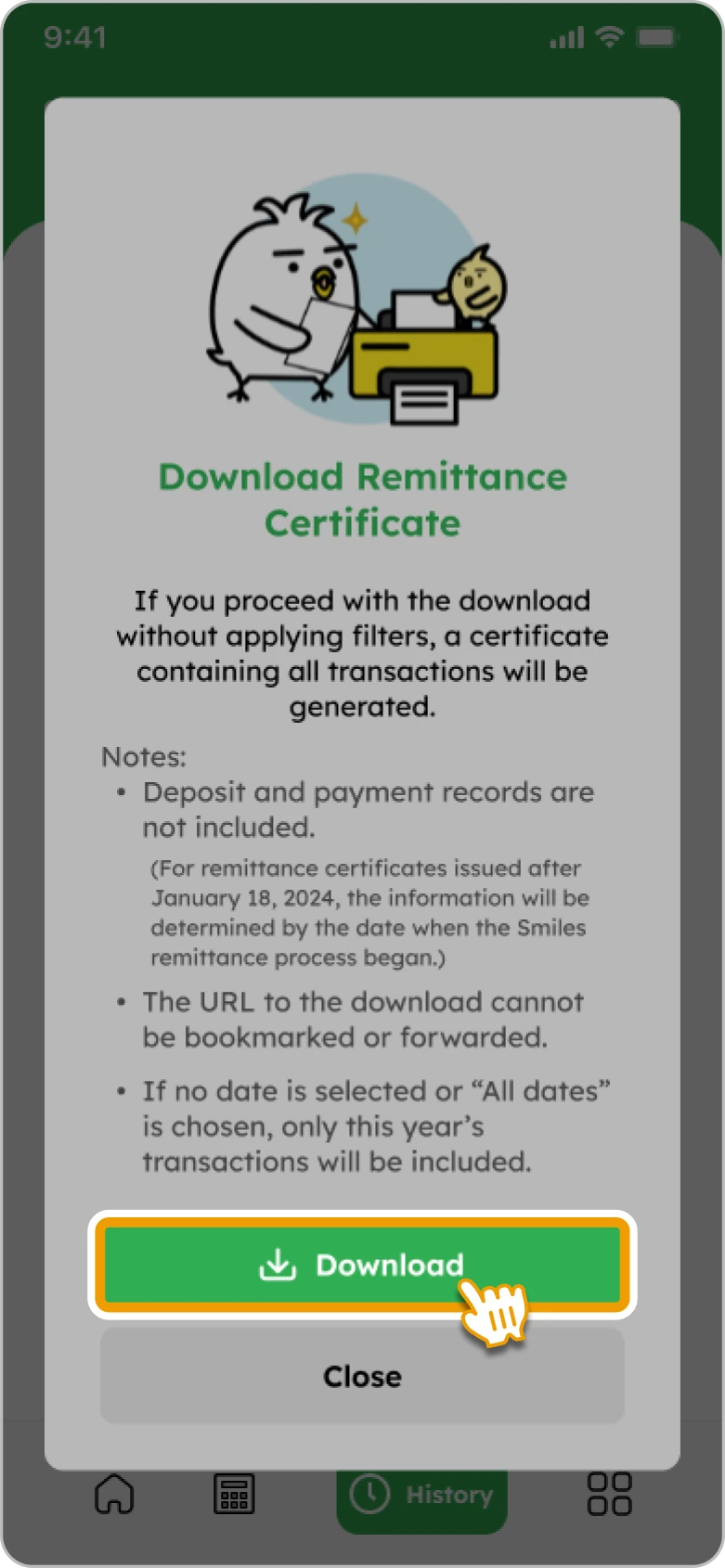
Note: Downloaded files can be printed out, even at convenience stores

Senders generally have the 30-Minute Cancellation right to cancel a transfer and receive a full refund. The request to cancel must be received by the remittance transfer provider no later than 30 minutes after the sender makes a payment.
Cancellations that exceed the 30-minute time frame may qualify if the funds have not yet been disbursed or credited to the beneficiary. Please reach out to customer service via the contact information below for assistance. Cancellation fees may apply.
Contact us here:
Email address: remitsupport.us@digitalwallet.global
Phone number: 1-888-436-8494 (PHL/ENG)
Phone: 1-888-662-8434 (Vietnamese)
To check the status of your remittance, please do the following:
Here are the explanations for each remittance status:
You are not able to delete any records of your remittances from your transaction history.
As a regulated money transfer service, Smiles is required to maintain a complete, permanent record of all transactions for compliance and audit purposes. This ensures security and adherence to regulatory standards.
To check your transaction details and reference number, please follow the instructions below:
You may also find the details on the official transaction receipt sent to your inbox.