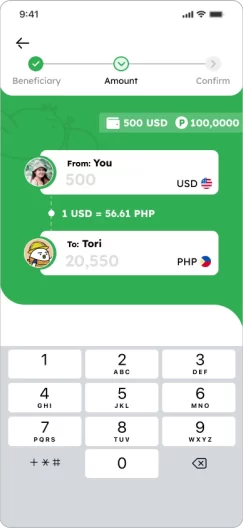
Home » Guidelines » How to Add Beneficiary

Help Center

book icon Guidelines comments icon FAQs Contact Us smiles help center icon Scam Awareness
Help Center > Guidelines > How to Add Beneficiary

How to Add Beneficiary

1. Tap “Add Beneficiary”

How to Add Beneficiary Smiles Mobile Remittance - Step 1 - Tap
2. Select the destination where your beneficiary will receive money 

How to Add Beneficiary Smiles Mobile Remittance - Step 2 - Select the destination country
3. Select Smiles as a remittance method

How to Add Beneficiary Smiles Mobile Remittance - Step 3 - Select
4. Select how your beneficiary would like to receive money​ and input/select the details
How to Add Beneficiary Smiles Mobile Remittance - Step 4 - Select how your beneficiary will receive the money
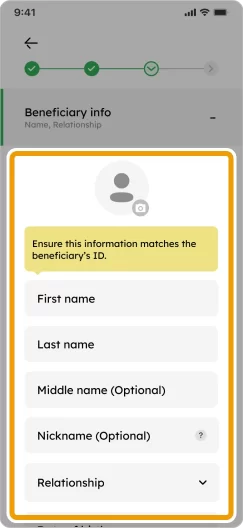
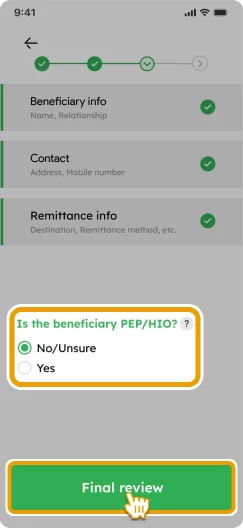
5. Input rest of​ beneficiary’s info​ and tap “Final review”​
How to Add Beneficiary Smiles Mobile Remittance - Step 5 - Enter the beneficiary details How to Add a Beneficiary Smiles Mobile Remittance - Step 5 - Select one of the PEP declarations and tap
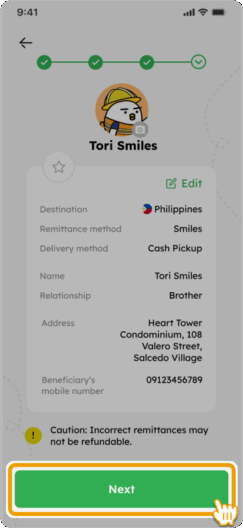
6. Confirm info and ​tap “Next”​
How to Add Beneficiary Smiles Mobile Remittance - Step 6 - Review the information entered and tap
7. If you agree with ​“FRAUD” reminders, ​please tap “Next” ​and complete process​
How to Add Beneficiary Smiles Mobile Remittance - Step 7 - Review the fraud reminders, check the box, and tap
8. You have successfully added a beneficiary! Optionally add them as a “Favorite” to your home screen by checking the box.

How to Add Beneficiary Smiles Mobile Remittance - Step 8 - The beneficiary was added! Check the box to add to the


Add beneficiary to the home screen

Add your favorite beneficiaries to the home screen for faster transactions!

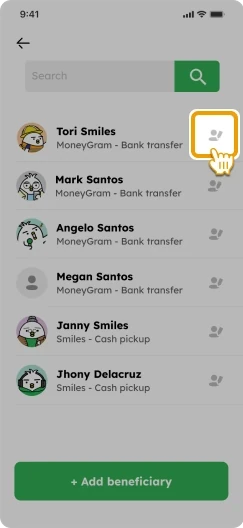
1. Go to your beneficiary list
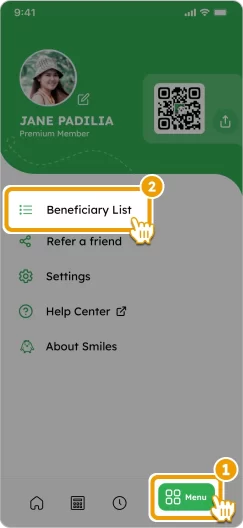
How to Add Beneficiary Smiles Mobile Remittance - Step 1 - Tap on
2. Select the beneficiary
How to Add Beneficiary Smiles Mobile Remittance - Step 2 - Edit your beneficiary
3. Tap on the star to add the beneficiary as a “Favorite” to your home screen
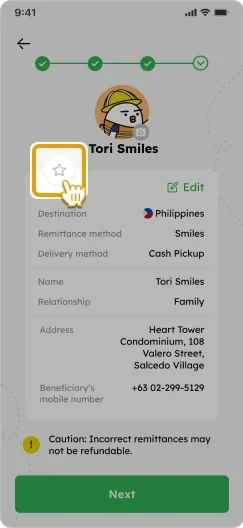
How to Add Beneficiary Smiles Mobile Remittance - Step 3 - Tap on the star icon to favorite your beneficiary
4. You can now remit faster by tapping on your beneficiary icon

How to Add Beneficiary Smiles Mobile Remittance - Step 4 - You added your beneficiary to home! How to Add Beneficiary Smiles Mobile Remittance - Step 4 - You can now remit faster
tori-reading

Smiles Tips!

down-up-arrow

Tap and hold the beneficiary icon to either remove it or remit funds.

How to Add a Beneficiary Smiles Mobile Remittance - Step 9 - Tap and hold your beneficiary icon
How to Add Beneficiary Smiles Mobile Remittance - Step 4 - You can now remit faster

FAQs

Yes, you can add your own foreign bank account as a beneficiary. 

To add your own foreign bank account, please follow the instructions below:
See guideline

To check the specific cash pickup location (outlet) of your remittance, please follow the instructions below:

1) Open the Smiles app
2) Tap on "History"
3) Select your transaction 
4) You can find the specific cash pickup location under "Ready for cash pick up"

You will:
1) Receive a notification update on the Smiles app
2) Receive a transaction reference number
3) Share the transaction reference number with the beneficiary

Add your name affix according to your name order. You may add it either after your Surname or First Name. 

To edit an existing beneficiary's details, please follow the instructions below:

1) Go to "Menu"
2) Tap "Beneficiary List"
3) Tap the pencil icon which is located beside the name of beneficiary that you want to edit.
4) Tap "Edit" button located at the top right of the center to edit the beneficiary's info.
5) Save changes

Other guidelines

flying Tori
tori's flight path tori flying over with a money bag
footer_smile_logo