
Home » Guidelines » How to Register

Help Center

book icon Guidelines comments icon FAQs Contact Us smiles help center icon Scam Awareness
Help Center > Guidelines > How to Register

How to Register

Steps to register

Step 1
register and create account icon

Create an account

See how to
arrow
Step 2
tori ekyc icon

eKYC (verify account)

See how to


Steps to create an account

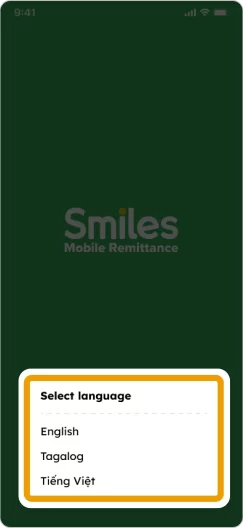
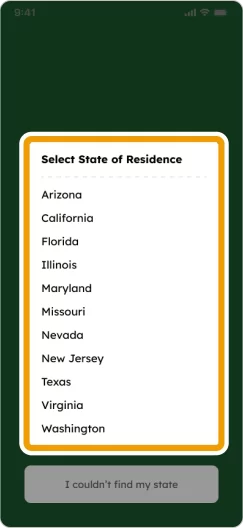
1. Select the country and state of residence and preferred language
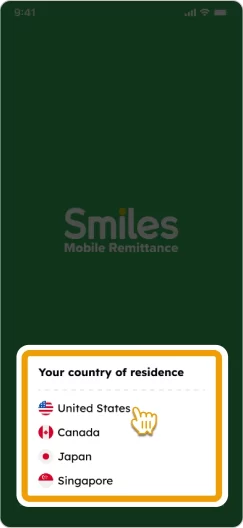
How to register Step 1 - Select your country of residence How to Register Smiles Mobile Remittance - Step 1 - Select your preferred language How to register - select state of residence
tori-reading

Smiles Tips!

down-up-arrow

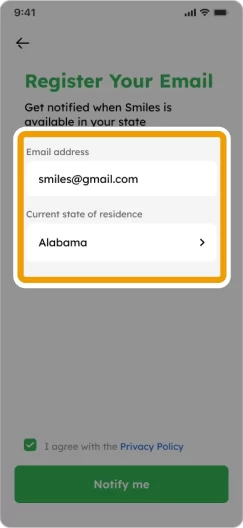
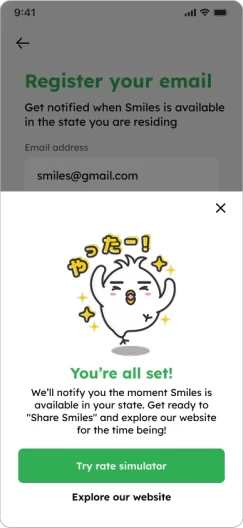
If your state isn’t listed, you can register your email address to get notified as soon as our service becomes available in your area.
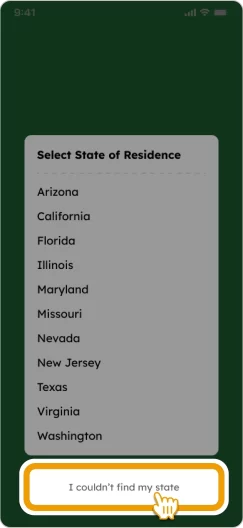
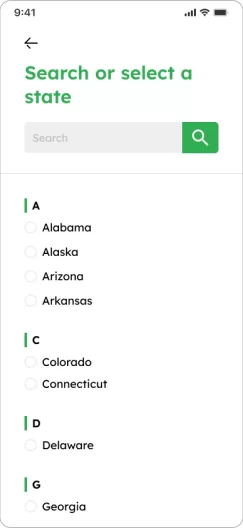
smiles tips 1 - select state of residence
smiles tips - search or select a state
smiles tips 3 - register your email
smiles tips - your're all set
2. Swipe left to see the app’s features or tap “Skip” to move forward
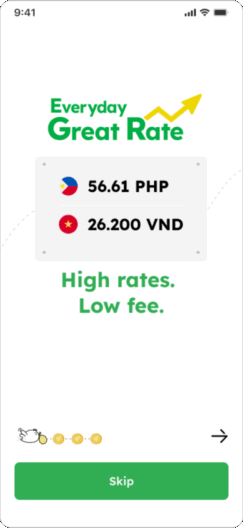
3. Tap “OK” to receive notifications from the app
turn on notifications and receive rate update click 'ok' on allow notifications
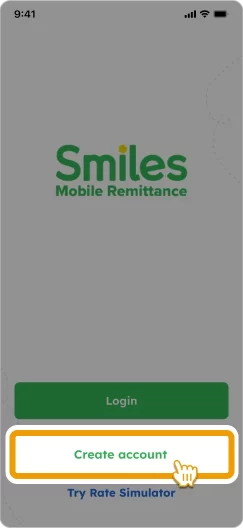
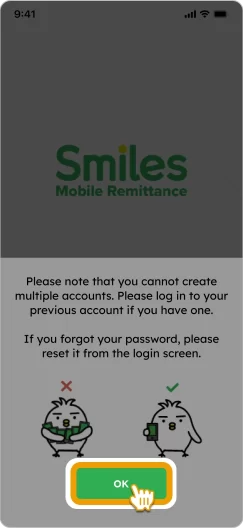
4. Tap “Create account” and “OK”
Click on 'create account' press 'ok'
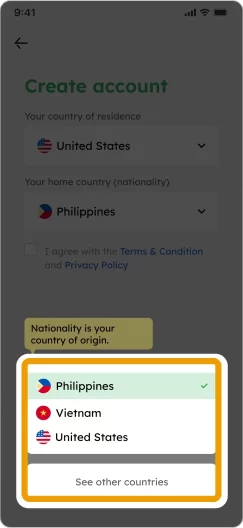
5. Choose your nationality
Choose your nationality
6. Enter your active email address, create a password, and add a referral code if you have one. Then tap “Register” to continue
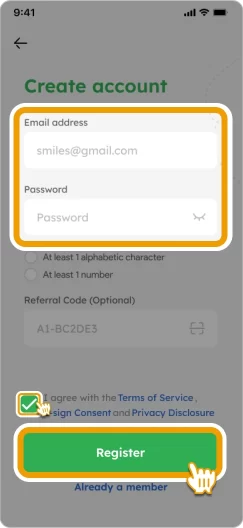
Step 6 - Enter your active email address, create a password, and add a referral code if you have one. Then tap “Register” to continue
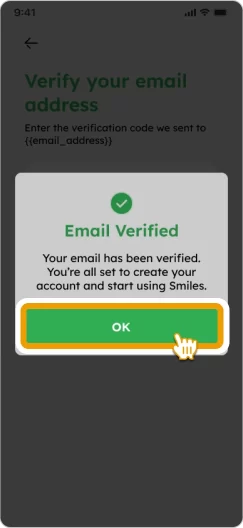
7. Input the verification code you received. Then tap “OK”
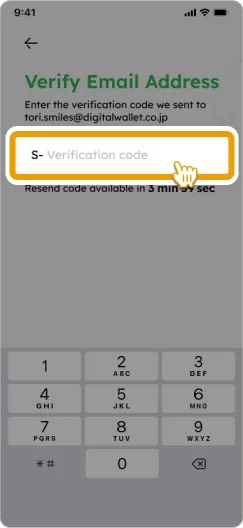
Step 7 - Input the verification code you received Step 7 - Tap “OK”
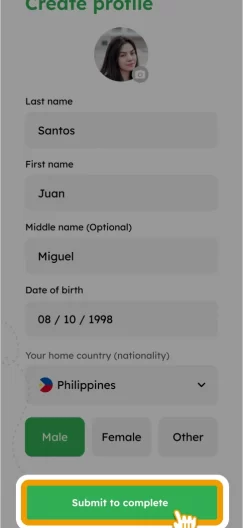
8. Create your profile. Then tap “Submit to complete”
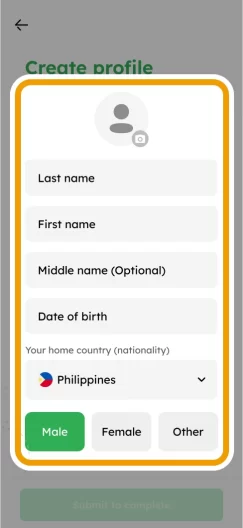
How to Register Smiles Mobile Remittance - Step 8 - Create your profile How to Register Smiles Mobile Remittance - Step 8 - Tap “Submit to complete”
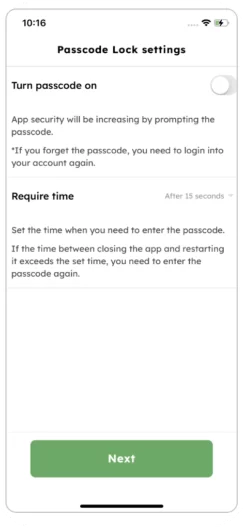
9. You now have a Smiles account! You can optionally set up a pass code for added security

Welcome to smiles step 8 - check password lock settings and press 'next'

I couldn’t complete my registration
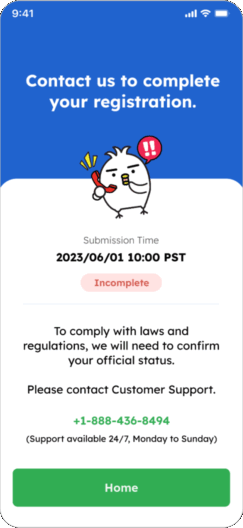
If one of these screens appear, please contact our customer service team

+1 647-812-6455

(9:00 a.m. – 7:00 p.m. Mon-Sun)

Recover your Smiles password

1. On your Smiles app, tap “Forgot password?”
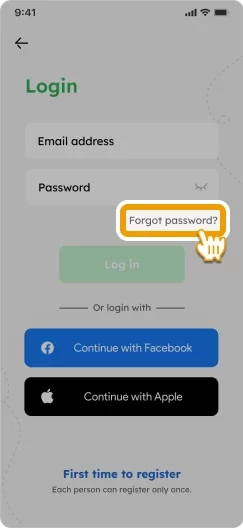
Screen showing 'forgot your password' link
2. Enter your email address and tap “Send Code”
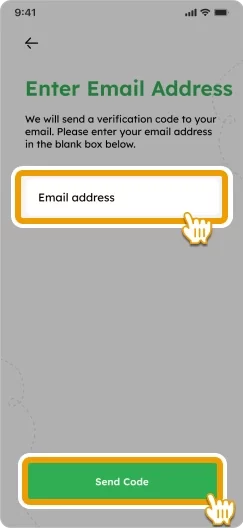
Enter your email address
3. Check your email inbox, input the verification code, and tap “Next” to proceed
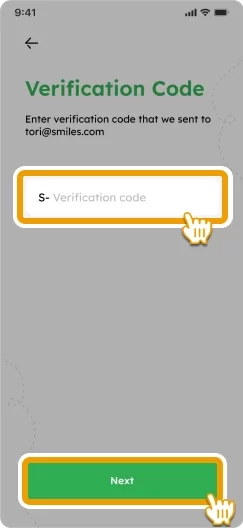
screen showing input to enter verification code
4. Enter your new password and tap “OK”
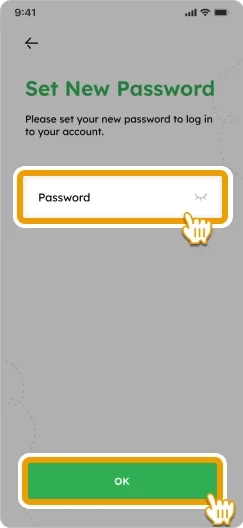
Screen to enter password
5. Your new password has been successfully set! Tap “Login” to access your Smiles account with your updated login information
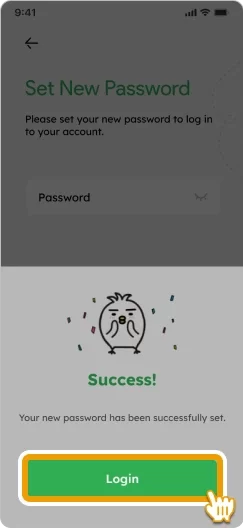
Screen showing click on

FAQs

No, you are not allowed to have multiple Smiles accounts. Only one account per customer is permitted.

Our service is currently available to users residing in states where we are licensed. Please check our website or app for the most up-to-date list of supported countries for senders.

In the Smiles app:

  1. Tap on the notification bell located on the right top
  2. Tap on "Notifications" to view the status of your registration.
  3. If there is no problem with your registration, you will receive a welcome message confirming its approval. Otherwise, you will receive a notice containing the instructions on how to correct your submitted details.

The confirmation code will be sent to your registered email address. If the code does not arrived in your inbox within 2-5 minutes, please check your spam and junk folders.

If you have recently updated your ID document, please submit the updated ID document on the Smiles app by following the instructions below:

1) Tap on "Menu"
2) Go to "Edit" beside your profile picture.
3) Scroll down to "Identification" and tap 'ID Card'.
4) Tap on "Update"
5) Select what you want to update and proceed to the next. 
6) Submit your updated ID

Then, please wait for the approval of your updated ID within 2-3 business days.

Other guidelines

flying Tori
tori's flight path tori flying over with a money bag
footer_smile_logo