Help Center
how-to-guidelines How-to Guidelines faq FAQs contact Contact Us smiles help center icon Scam Awareness
Help Center > How-to Guidelines > How to Recover your Smiles password

How to Recover your Smiles password

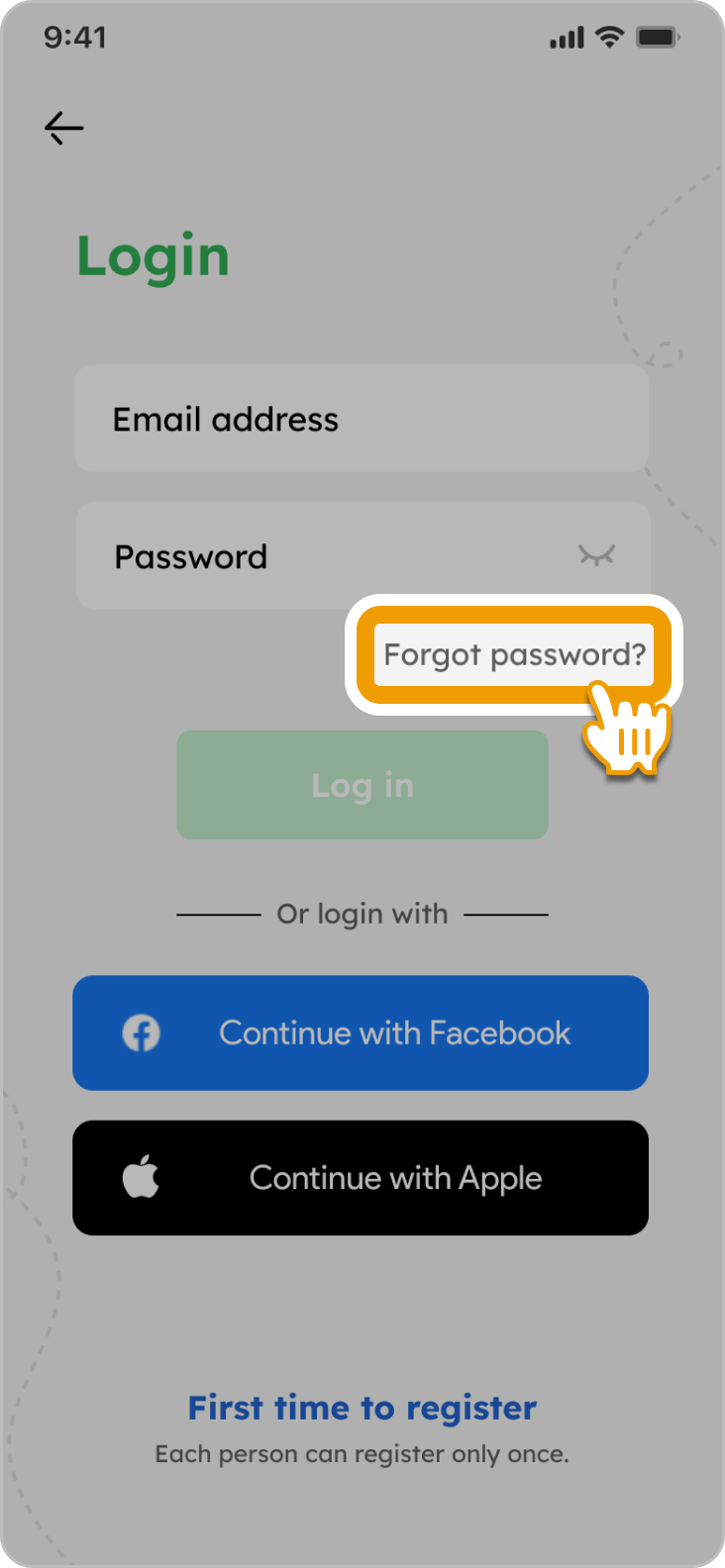
1. On your Smiles app, tap “Forgot password?”

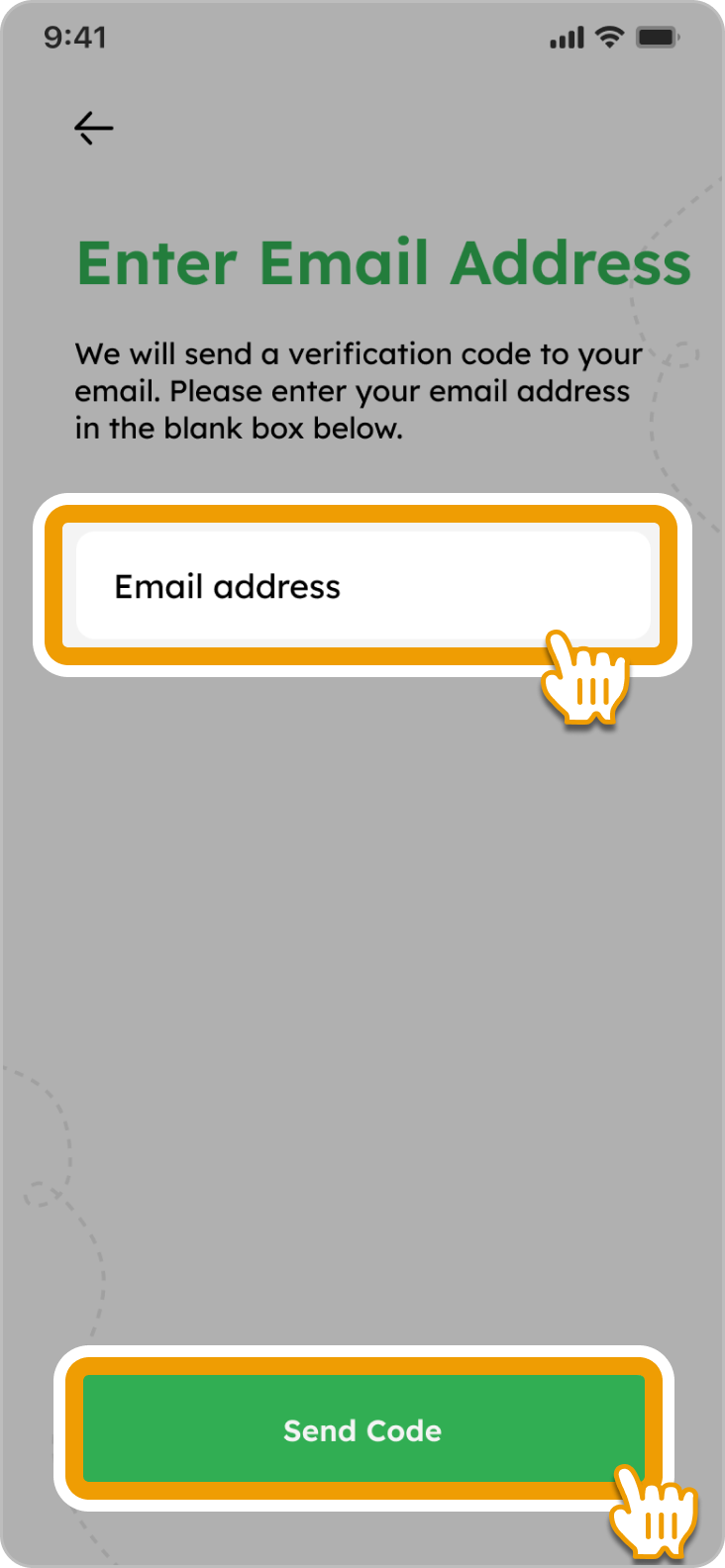
2. Enter your email address and tap “Send Code”

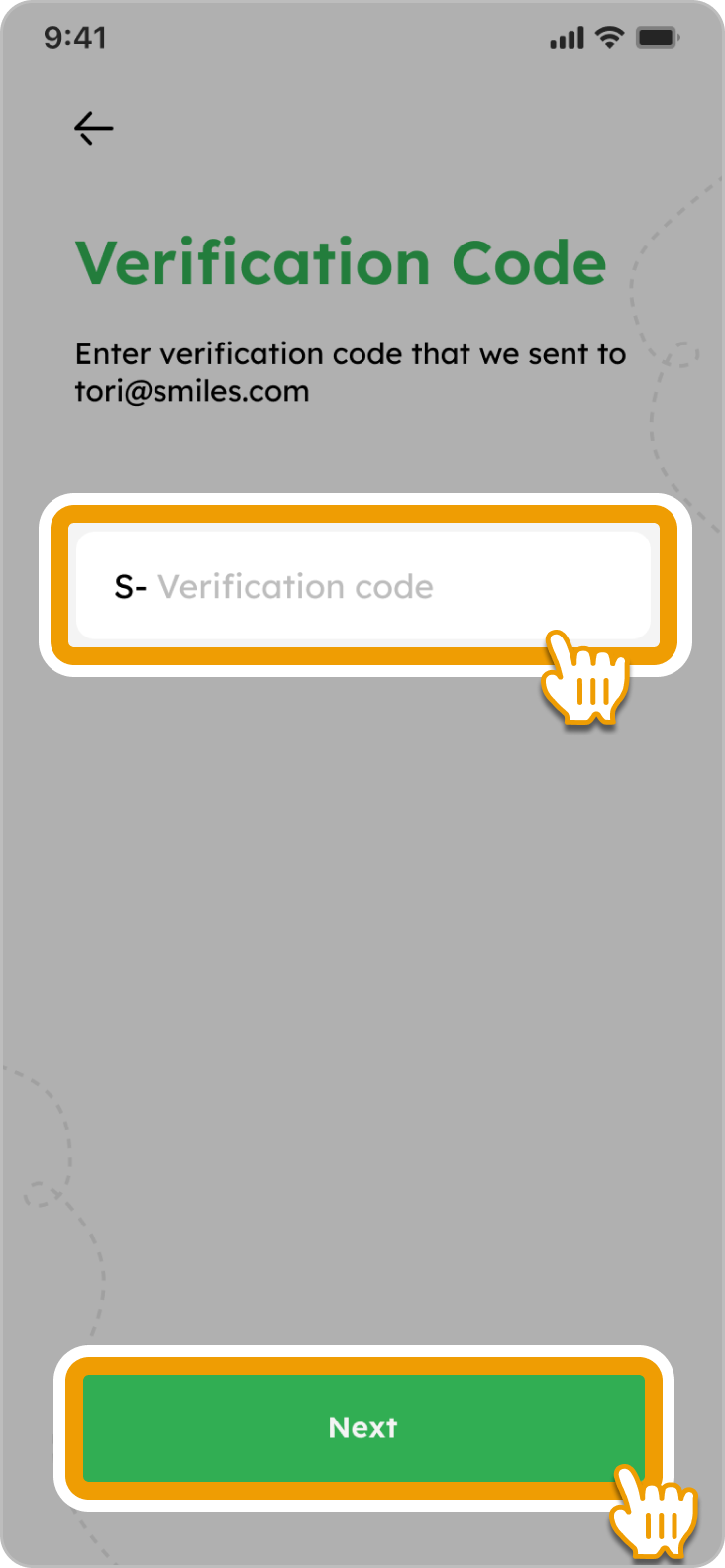
3. Check your email inbox, input the verification code, and tap “Next” to proceed

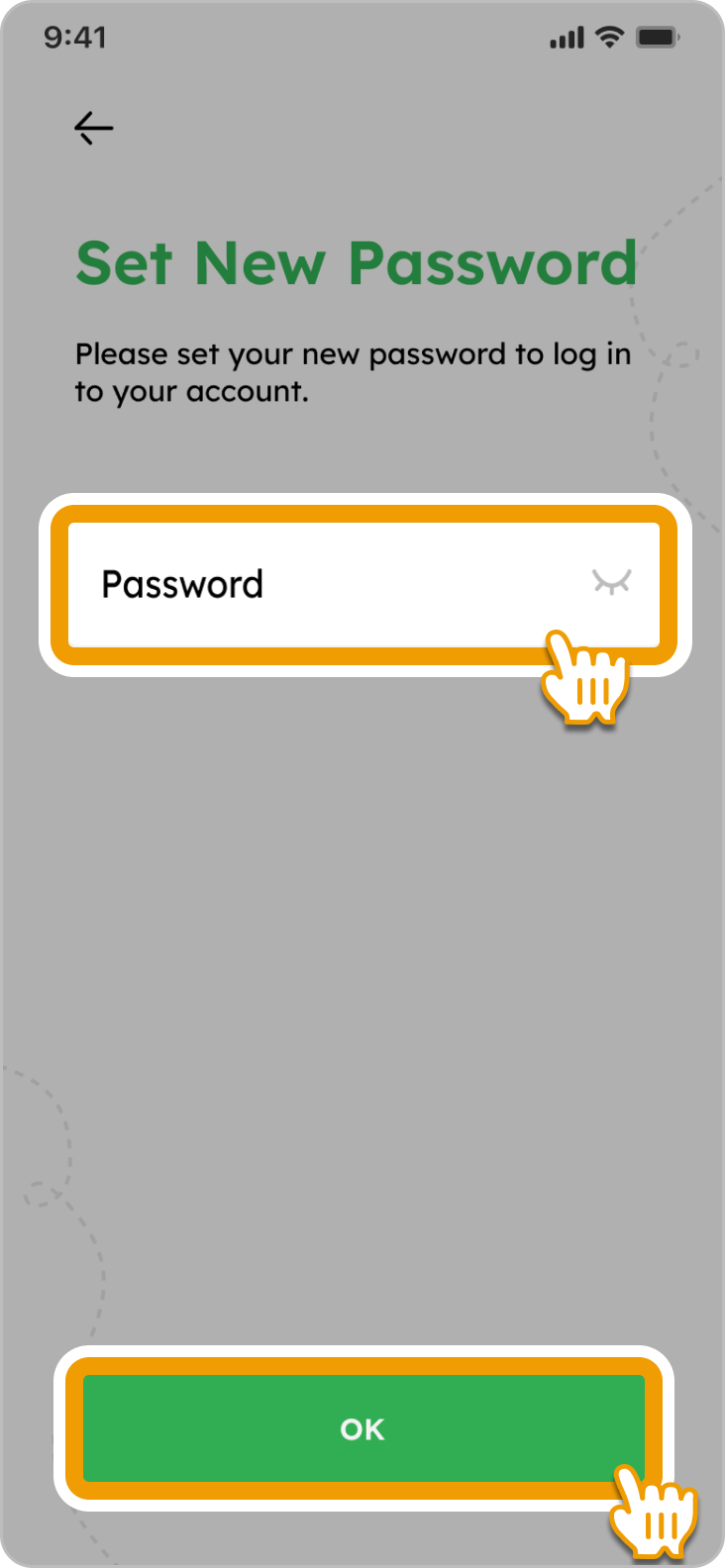
4. Enter your new password and tap ”OK”

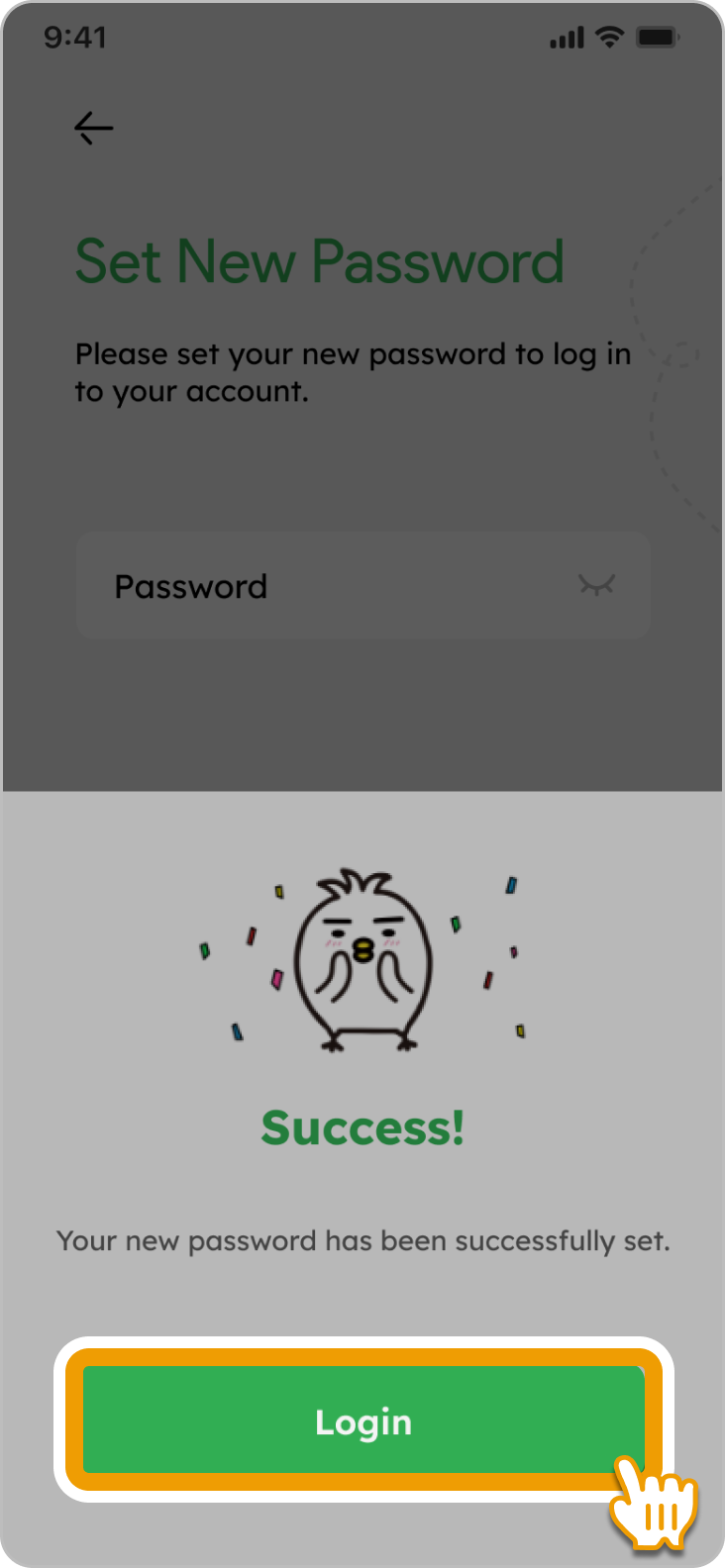
5. Your new password has been successfully set! Tap “Login” to access your Smiles account with your updated login information

FAQs

For security purposes, the Smiles app only allows one login account per mobile device. In other words, one cannot log in to his/her Smiles account in different devices at the same time.

You can, however, switch to a device by following the steps below:

  1. Install Smiles App to your new mobile device.
  2. Select the Region & Language you prefer.
  3. Tap [ Login ] and log in with your registered login account.
  4. Check the confirmatiion code sent to your registered email address. Enter the 6-digit code in the provided field in the Smiles app.

For security purposes, the Smiles app only allows one login account per mobile device.

In other words, one cannot log in to his/her Smiles account in different devices at the same time.

No, you are not allowed to have multiple Smiles accounts. One account per customer is only permitted.

Others

tori flying over with a money bag
footer_smile_logo